FailedFailed 2 times in a row
Backup job "DC-02 · vzdump all VMs" reported failed: [Failed] vzdump all VMs — repository unreachable
Product
BackupSentinel reads the result emails your backup software already sends and keeps one status per backup job, per client. One list in the morning shows what failed, went missing or needs a look.
Are all backups healthy? If not, which ones, and why? The Overview opens with one sentence: how many items need you, split into failed, warnings and missing. Below it sits Needs attention: one open alert per job, ordered by state, then severity, then kind, then age.
Every line says what happened in plain words: “Failed 4 times in a row”, “Last good backup 3 d ago”, “No report for 26 h”. Acknowledge an item so the team knows it is yours, snooze it for 1 h, 4 h or 24 h, or resolve it with a note.
It also lists a backup that reported success but wrote half its usual size or less (against the median of its previous seven runs), and alert channels that stopped delivering.
Every backup job is one row: status, source, last run, next expected and the last seven results as a strip. A flaky job shows as a broken strip before it becomes a failed one. Filter by client or state and export as CSV when a customer asks what is being watched.
Each job has a cadence, daily by default. Every accepted report sets the next expected time from it, and a check runs every 15 minutes.
A job turns Missing once its report is late by more than its grace: a quarter of the cadence, between 15 minutes and 2 hours, for cadences up to 8 hours; 10% and at least 2 hours above that. Until then the job shows a “late” hint, so nobody is alerted about a backup that is still finishing.
Grace: 2 h 24 min for a daily job A check every 15 minutes
Ten built-in rules read the common products. Anything else falls to a generic rule that looks for failed, warning and success, or to a rule you write.
A custom rule adds its own patterns and keywords, and an in-browser tester runs the real parser on a pasted email before you save. Customize copies a built-in rule; finished rules can be submitted to a reviewed community library.
Emails that match no job, or that no rule can read, wait in the Inbox: assign them to a job, start monitoring a new job from the email, or ignore them. A report replaced by a newer one is marked superseded.
An alert belongs to a job, not to an email: one open item per job, carried by the channels you choose, with a digest for the rest.
Email, Slack, Microsoft Teams and PagerDuty (Events API v2, auto-resolve). Failed deliveries retry every 10 minutes; each channel has a Send test button.
One open alert per job. A warning that becomes a failure escalates the same alert. When the next report is OK the alert resolves and a recovery notice goes out. Paused clients keep storing reports and send no alerts.
A daily digest email goes to the workspace owner at 07:00 workspace time with what is open. One click unsubscribes.
Two views across every client at once: one for the screen on the office wall, one for the last thirty days.
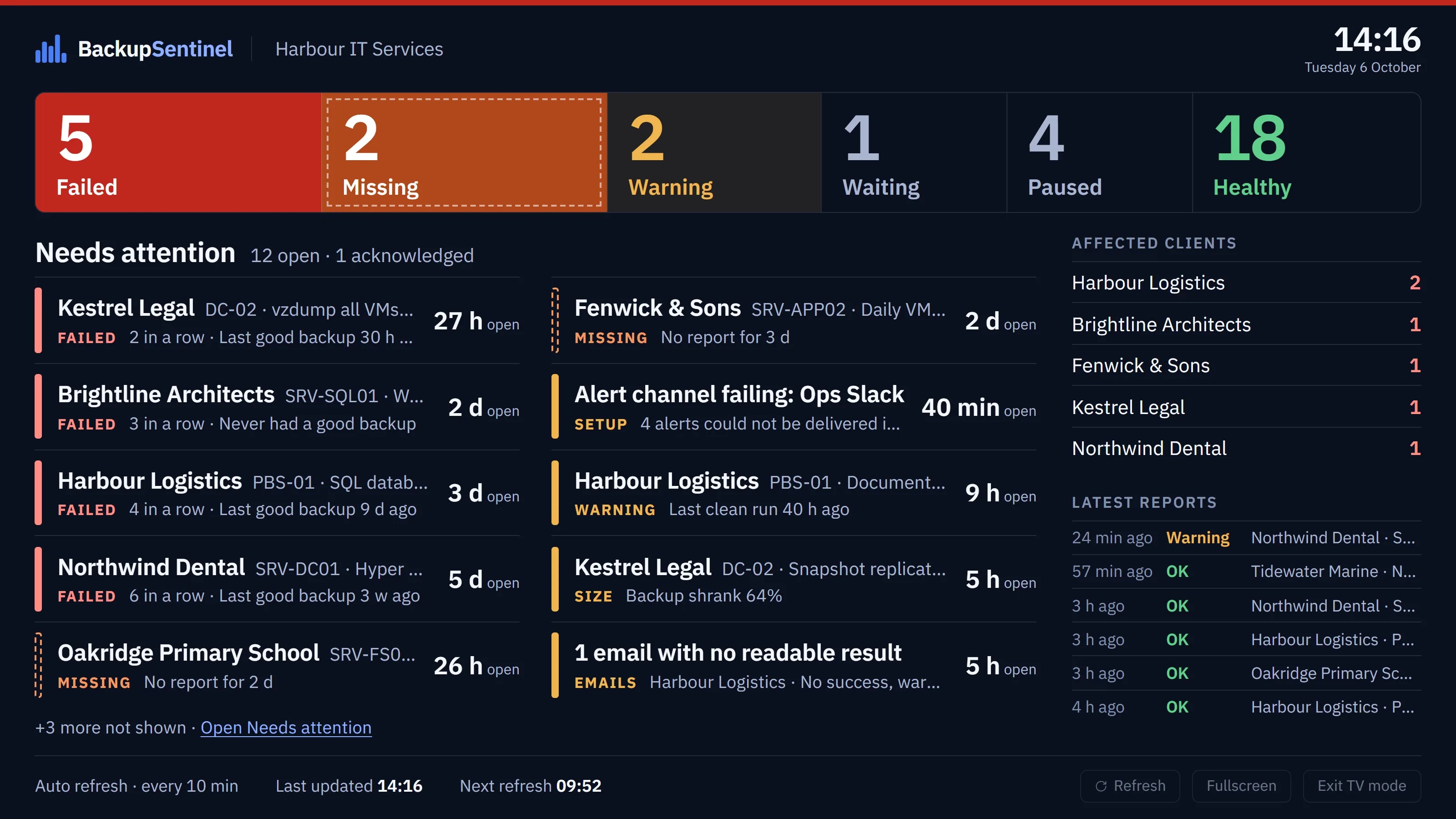
The Overview as a wallboard for a screen in the office: the status counts and the Needs attention list in type you can read from across the room, with the affected clients and the latest reports beside them. Open it with the TV mode button on the Overview, in a browser signed in to your workspace.
One row per backup, one cell per day for 30 days, coloured by that day’s result. Step back a month at a time, filter by client, device or current status, and sort by the backups with the most issues first.
SLA tier standard 99.0, gold 99.5, platinum 99.9 or a custom target. Contacts with a role, an email address and an on-call flag; a timezone per client. Pause a client for 24 hours, 7 days, until a date or until resumed: reports are still stored, no alerts go out.
Created from the first report or by hand, with addresses, model, serial, location, warranty and notes. Labelled logins are encrypted, revealed only to owners and admins, and every reveal is logged. Free and unlimited.
A monthly client report with success rate, missing reports, incidents and median time to recover, as CSV. A health summary per client, and scheduled summaries by email daily, weekly, monthly or quarterly.
Point one client's report email at the address you get on sign-up and the first job appears with its first result.