Docs
Setup guides
How report emails reach a job, the menu path for each supported product, how to write and test a parsing rule, the one-endpoint report API, and what the account offers for access and security.
Client and job addresses
Every client has its own address, <slug>@ingest.backupsentinel.io. Add it as a recipient in the backup software and every report for that client arrives in one place. Settings → Client addresses lists them all; the job drawer shows the address for a single backup.
Reports are matched to a job by the job name in the email. One client address therefore covers all of a client’s backups, as long as the product puts the job name in the subject or body.
When a product cannot include the job name, use the job’s own address instead. Anything sent there is credited to that backup regardless of what the email says.
A report that matches no job, or that no rule can read, waits in the Inbox. From there you assign it to a backup, start monitoring a new job from it, or ignore it.
Your first backup
Five steps, one of which is waiting.
- Create a client. Its address appears under Settings → Client addresses.
- Copy the address.
- Add it as a recipient in the backup software’s notification settings (see the product steps below).
- Send a test report from the product, or wait for the next scheduled run.
- The job appears as Waiting, then turns Healthy, Warning or Failed with the first report. From then on it becomes Missing when a report is later than its grace: for a daily job, 2 h 24 min past the expected time. Late shows as a hint before that.
Veeam B&R
Veeam sends one email per job session. The subject starts with [Success], [Warning] or [Failed], and the body names the job, so a single client address covers every job on the server.
Written for Veeam Backup & Replication 11 and 12.
Open the email settings
In the Veeam console, open the main menu (top left) → Options → E-mail Settings. In version 11 the menu entry is called General Options.
Turn notifications on
Tick "Enable e-mail notifications" and fill in your SMTP server and the From address. If email notifications already work for you, leave these as they are.
Add the client address
Add the client address to the To field, next to your own (separate addresses with a semicolon). Keep the default subject, and tick Notify on success, Notify on warning and Notify on failure: a job that only reports failures looks Missing on every good day.
- Default subject: [%JobResult%] %JobName% (%ObjectCount% machines) %Issues%
- Keep "Suppress notifications until the last retry" ticked, so a job that succeeds on a retry does not report a failure first.
Optional: only some jobs
To report selected jobs only, leave the global To field without the client address and edit each job instead: Storage step → Advanced → Notifications tab → "Send e-mail notifications to the following recipients".
Name the backups the same
In BackupSentinel, create one backup per Veeam job and give it exactly the job's name (capital letters do not matter).
- How reports find their backup
- The built-in rule reads the job name from the "Backup job:" line of the report, plus the total size and duration. One client address therefore covers all of a client's Veeam jobs, as long as each backup in BackupSentinel has the same name as its Veeam job. A report whose job name matches no backup waits in the Inbox, where you can start monitoring it.
- Check it works
- Run the job once, or wait for the next scheduled run. Within a minute the report appears under the backup, or in the Inbox when it could not be matched. A product's own "send test email" is not a backup result: expect it in the Inbox, where you can ignore it.
Synology DSM
DSM sends its notifications by email. A notification rule that contains only the Hyper Backup results keeps everything else the NAS reports (disk health, updates, logins) out of BackupSentinel.
Written for DSM 7.2 or later, which has the Rules tab.
Create a notification rule
In DSM, open Control Panel → Notification → Rules and click Add. Name the rule Hyper Backup.
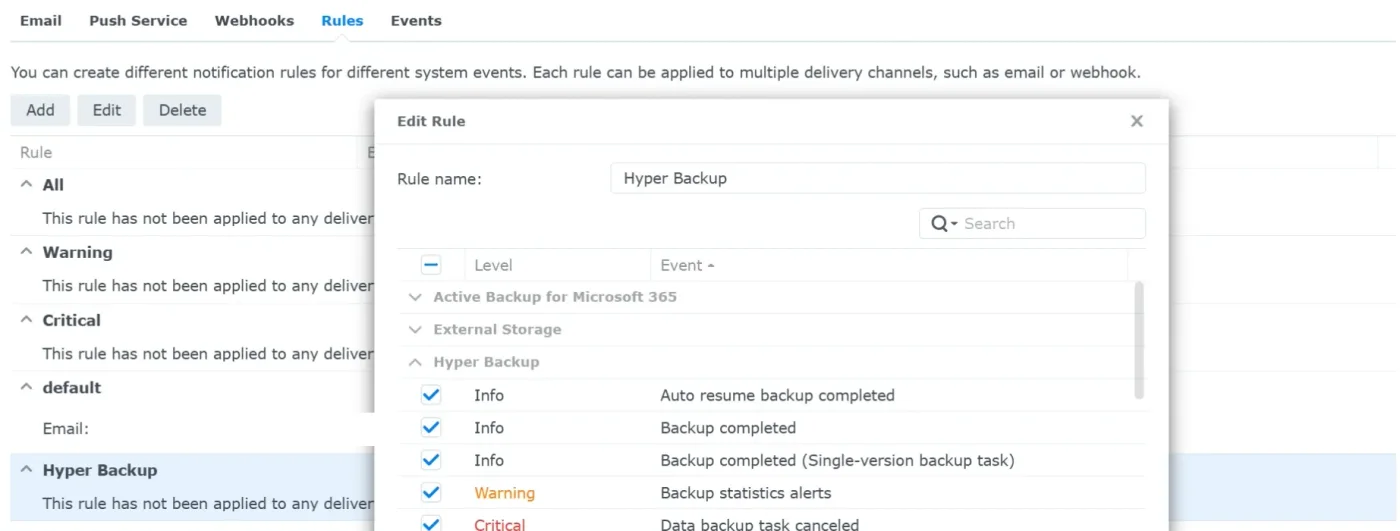
Control Panel → Notification → Rules. A rule lists the events it sends. Tick only the Hyper Backup results
Clear the checkbox in the header so nothing is selected, open the Hyper Backup group, and tick the events that say how a backup ended:
- Backup completed, Backup completed (Single-version backup task), Auto resume backup completed
- Data backup task failed, Data backup task partially completed
- Data backup task canceled, Data backup task suspended
- Entire system backup completed, and its auto-resumed variant, if you use entire system backup
- Backup statistics alerts is optional: it warns about an unusual change in backup size and is not the result of a run
- Integrity check events are optional: a failed integrity check marks the task it checked as Failed, because its backup data may be damaged. A completed check never changes the status.
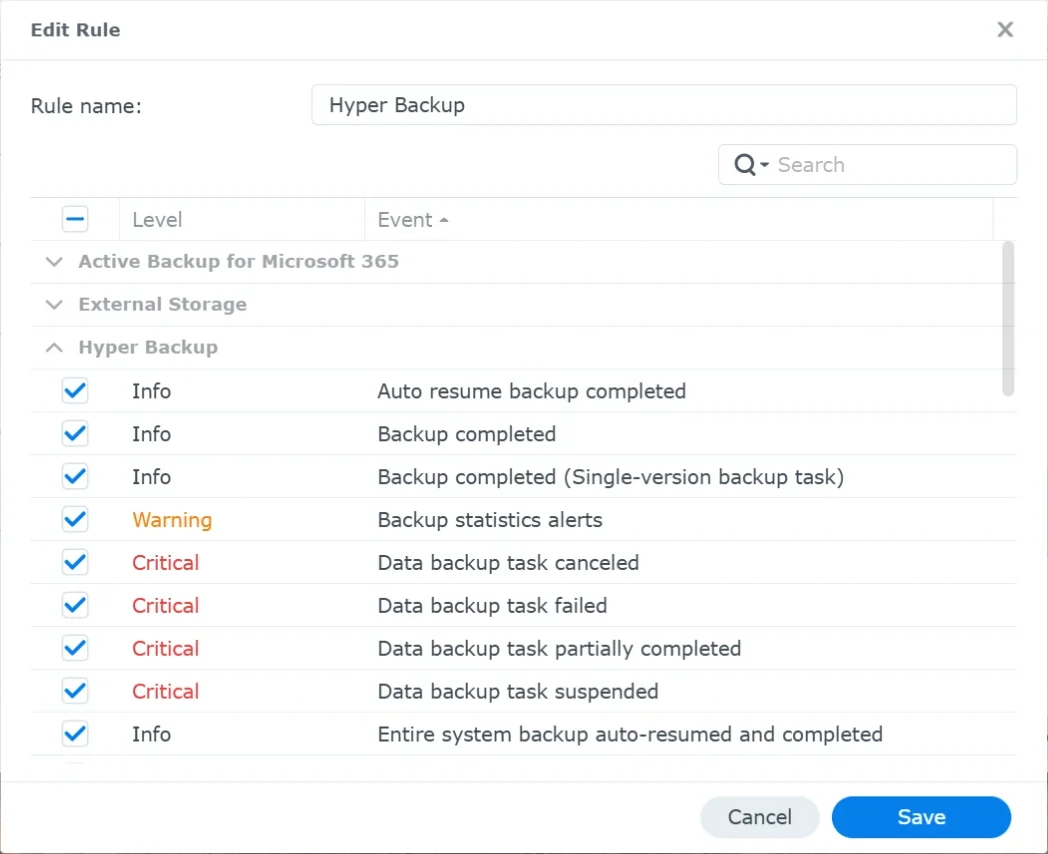
Only the Hyper Backup group is ticked. The other groups stay closed and empty. Leave the rest unticked
Every email that reaches the address counts as a report for the backup, so leave out the events that are not a backup result:
- LUN and restoration events, unless LUN backup is the job you monitor
- End-of-support and other announcements

Further down the same list: LUN and restoration events are left unticked. Send the rule to the client address
Save the rule, then open the Email tab. Set up the sender if DSM does not send email yet, add the client address as a recipient, and give that recipient the Hyper Backup rule. Your own address keeps its own rule, so you still receive everything else.
- No subject prefix is needed: the built-in rule recognises DSM's own Hyper Backup subjects, such as Network backup - BKP to HDD2 successful on NAS01.
Apply and run a backup
Click Apply. Then run the Hyper Backup task once (Hyper Backup → Back up now) so a real result is sent.
- How reports find their backup
- The built-in rule reads the Hyper Backup task name from each email, so several tasks on one NAS can all report to the client address. Give each backup in BackupSentinel the exact name of its Hyper Backup task; Start monitoring from a task's first email suggests that name. An email for a task that has no backup yet waits in the Inbox instead of updating another task's backup.
- Check it works
- Run the job once, or wait for the next scheduled run. Within a minute the report appears under the backup, or in the Inbox when it could not be matched. A product's own "send test email" is not a backup result: expect it in the Inbox, where you can ignore it.
- Good to know
- A partially completed backup shows as Warning, a failed one as Failed. Canceled and suspended notices may carry no result the rule can read; those wait in the Inbox instead of changing the status.
- DSM 7.1 and earlier have no Rules tab: use Control Panel → Notification → Advanced and tick Email for the same Hyper Backup events.
Acronis Cyber Protect
Acronis reports per protection plan. Where the notification is set differs between Cyber Protect Cloud and the on-premises editions, so the steps name what to look for rather than one menu.
Open the plan's notification settings
Open the protection plan you want to monitor and find its email notification settings. In some editions these are set once for the whole account or organisation rather than per plan.
Add the address and pick the events
Add the address as an email recipient and enable notifications for successful, warning and failed backups. A plan that only reports failures looks Missing on every good day.
- How reports find their backup
- The built-in rule reads the result of the report but not a job name. With one backup under the client, every report sent to the client address is credited to it. With several, give each job its own address (shown in the job drawer) wherever the product lets you set a recipient per job. Reports that cannot be told apart wait in the Inbox for you to assign.
- Check it works
- Run the job once, or wait for the next scheduled run. Within a minute the report appears under the backup, or in the Inbox when it could not be matched. A product's own "send test email" is not a backup result: expect it in the Inbox, where you can ignore it.
Microsoft 365
Microsoft 365 backup products send their reports to a mailbox. A forwarding rule passes a copy on to BackupSentinel.
Forward with a mail flow rule
In the Exchange admin center, go to Mail flow → Rules and create a rule that sends a copy of your backup report emails to the address. Match on the sender or on a word in the subject, so only the reports are forwarded.
Or forward from the mailbox
Alternatively, create an inbox rule on the mailbox that receives the reports and have it forward them to the address.
- How reports find their backup
- The built-in rule applies to reports with Microsoft 365, M365 or Office 365 in the subject, and reads the result but not a job name. Forward each product's reports to the address of the backup they belong to. Forwarding must keep the original subject and body.
- Check it works
- Run the job once, or wait for the next scheduled run. Within a minute the report appears under the backup, or in the Inbox when it could not be matched. A product's own "send test email" is not a backup result: expect it in the Inbox, where you can ignore it.
Proxmox PBS
Proxmox VE emails a "vzdump backup status" report after each backup job. Newer versions route it through the notification system; older ones use a field on the job.
Written for Proxmox VE 8.1 or later for the notification system; earlier versions use the job's own email field.
Proxmox VE 8.1 or later: add a target
Go to Datacenter → Notifications and add a notification target of type SMTP (or Sendmail) with the address as recipient.
Route backup reports to it
In the same place, add a notification matcher that sends backup (vzdump) notifications to that target. Then edit the backup job under Datacenter → Backup and make sure its notification mode uses the notification system.
Earlier versions: use the job's email field
Edit the backup job under Datacenter → Backup, put the address in "Send email to", and set "Send email" to Always rather than on failure only.
Proxmox Backup Server
PBS has its own notification settings for datastore jobs. Add the address as a recipient there and set the jobs to notify always.
- How reports find their backup
- The built-in rule applies to reports with "vzdump backup status" or Proxmox in the subject, and reads the result, the total size and the running time, but not a job name. Give each backup job its own address, or keep one backup per client.
- Check it works
- Run the job once, or wait for the next scheduled run. Within a minute the report appears under the backup, or in the Inbox when it could not be matched. A product's own "send test email" is not a backup result: expect it in the Inbox, where you can ignore it.
Duplicati
Duplicati has email reporting built in, set with advanced options on each backup. Its default subject names the backup, so one client address covers several backups.
Open the backup's options
In the Duplicati web interface, choose the backup → Edit → Options (step 5) → Advanced options.
Add the email options
Add these advanced options:
- send-mail-to: the client address
- send-mail-url: your SMTP server, for example smtp://smtp.example.com:587/?starttls=when-available
- send-mail-username and send-mail-password, if your server needs them
- send-mail-from: the sender address your server accepts
- send-mail-level: All, so successful runs are reported too
Keep the default subject
Leave send-mail-subject unset. The default, "Duplicati Backup report for <backup name>", is what the built-in rule reads the name from.
Name the backups the same
In BackupSentinel, give each backup exactly the name of its Duplicati backup. To apply the same email options to every backup at once, set them under Settings → Default options.
- How reports find their backup
- The built-in rule reads the backup name from "Backup report for <name>" in the subject, and the duration. One client address therefore covers all of a client's Duplicati backups, as long as the names are the same on both sides.
- Check it works
- Run the job once, or wait for the next scheduled run. Within a minute the report appears under the backup, or in the Inbox when it could not be matched. A product's own "send test email" is not a backup result: expect it in the Inbox, where you can ignore it.
NAKIVO
NAKIVO sends a job run report by email after each run. The recipient is set per job, so each job can report to its own address.
Set up outgoing email
Go to Settings → General → Email Settings and enter your SMTP server. Send the test email to your own address first.
Add the address to the job
Edit the job and, on its Options step, put the address in "Send job run reports to". Use the backup's own address here (shown in the job drawer in BackupSentinel).
- How reports find their backup
- The built-in rule reads the result of the report but not a job name. With one backup under the client, every report sent to the client address is credited to it. With several, give each job its own address (shown in the job drawer) wherever the product lets you set a recipient per job. Reports that cannot be told apart wait in the Inbox for you to assign.
- Check it works
- Run the job once, or wait for the next scheduled run. Within a minute the report appears under the backup, or in the Inbox when it could not be matched. A product's own "send test email" is not a backup result: expect it in the Inbox, where you can ignore it.
Datto
Datto sends backup alerts by email from the Partner Portal. The exact place differs between Datto products.
Open the alert settings
In the Datto Partner Portal, open the notification or alert settings for the device or the backup you want to monitor.
Add the address
Add the address as a custom email recipient for backup status alerts, and include successful backups where the product offers it.
- How reports find their backup
- The built-in rule reads the result of the report but not a job name. With one backup under the client, every report sent to the client address is credited to it. With several, give each job its own address (shown in the job drawer) wherever the product lets you set a recipient per job. Reports that cannot be told apart wait in the Inbox for you to assign.
- Check it works
- Run the job once, or wait for the next scheduled run. Within a minute the report appears under the backup, or in the Inbox when it could not be matched. A product's own "send test email" is not a backup result: expect it in the Inbox, where you can ignore it.
- Good to know
- If the product can only alert on failures, BackupSentinel cannot tell a quiet good day from a report that never arrived, and the backup shows as Missing. Use a setting that reports successful backups too.
MSP360
MSP360 (CloudBerry) sends a notification after each backup plan run, set on the plan or company-wide in the Management Console.
Open the plan's notification step
Edit the backup plan and go to its notification step.
Notify in all cases
Tick the option to receive a notification email, choose to be notified in all cases rather than only when the backup fails, and enter the address.
Or set it company-wide
In the Management Console, a company-wide notification email can be set in the settings; plans then report there without being edited one by one.
- How reports find their backup
- The built-in rule reads the result of the report but not a job name. With one backup under the client, every report sent to the client address is credited to it. With several, give each job its own address (shown in the job drawer) wherever the product lets you set a recipient per job. Reports that cannot be told apart wait in the Inbox for you to assign.
- Check it works
- Run the job once, or wait for the next scheduled run. Within a minute the report appears under the backup, or in the Inbox when it could not be matched. A product's own "send test email" is not a backup result: expect it in the Inbox, where you can ignore it.
Cove Data Protection
Cove Data Protection (N-able) sends backup status emails from its management console.
Open the notification settings
In the Cove management console, open the Notifications settings of the device or of the backup profile.
Add the address
Add the address as an email recipient for backup status notifications, including completed backups.
- How reports find their backup
- The built-in rule reads the result of the report but not a job name. With one backup under the client, every report sent to the client address is credited to it. With several, give each job its own address (shown in the job drawer) wherever the product lets you set a recipient per job. Reports that cannot be told apart wait in the Inbox for you to assign.
- Check it works
- Run the job once, or wait for the next scheduled run. Within a minute the report appears under the backup, or in the Inbox when it could not be matched. A product's own "send test email" is not a backup result: expect it in the Inbox, where you can ignore it.
Any other product
Without a built-in rule, the generic rule reads keywords: failed, failure or error means Failed; warning means Warning; success or “completed successfully” means Healthy.
- Point your backup software's email or SMTP alert notifications at the client address.
- Check its notification, alerting, or reporting settings for where to add a recipient email.
Custom rules
A rule tells the parser how to read one product’s emails. Rules live in Settings → Email parsing and apply to the whole workspace. The list shows which are built-in, which came from the community library and which are your own.
- Name and provider
- Free textHow the rule appears in the list
- Subject pattern
- A regular expressionDecides which emails the rule applies to
- Keywords
- Failed, Warning, OKOne comma-separated list per outcome
- Job name pattern
- Capture group 1Searched in the subject, then the body
- Size pattern
- Group 1 number, group 2 unitTB, GB, MB, KB or B
Order of evaluation:
- Your rules run before the built-in ones. The first rule whose subject pattern matches is used.
- Within a rule, the failed keywords win over warning, and warning over ok, whichever appears first.
- The subject is checked before the body.
Customize on a built-in rule copies it into your workspace so you can change a keyword or a pattern without starting from nothing. A rule that works for a product others use can be submitted to the community library; submissions are reviewed before they are published.
Testing a rule
The rule editor ends with “Test against a sample email”. Paste the subject and body of a real report and it runs the same parser the ingest uses, in the browser, as you type. It shows whether the subject matched and the status, job name and size it read. Adjust the patterns until all three are right, then save.
Report API
One endpoint, for scripts and products that do not send email. Create a key in Settings → API keys; the key is shown once and stored hashed. The job id is the last part of the job’s URL in the app (/dashboard/jobs/…).
POST https://app.backupsentinel.io/api/v1/jobs/{jobId}/report
Authorization: Bearer bsk_live_…
Idempotency-Key: nightly-2026-10-02
Content-Type: application/json

{"status": "failed", "size_bytes": 48318382080, "timestamp": "2026-10-02T01:12:40Z"}

# 200
{"ok": true, "status": "failed", "alert_id": "…", "duplicate": false, "superseded": false}

# 429 when over 60 requests/minute
- Auth
- Bearer keyAuthorization: Bearer bsk_live_…
- Rate limit
- 60 / minPer key; 429 above it
- Idempotency
- Idempotency-Key headerA repeat returns duplicate: true
- Statuses
- ok, warn, failedsize_bytes and timestamp are optional
A timestamp more than 5 minutes in the future or more than 30 days old is ignored and the time of receipt is used. There is no read API and no outbound webhook.
Account and security
- Four roles: owner, admin, member and viewer. Device logins are revealed only to owners and admins, and every reveal is logged.
- Two-factor sign-in with a TOTP app, which an owner can require for the whole workspace.
- Sign in with email and password, Microsoft or Google.
- An activity log of who changed what, for owners and admins.
- A JSON export of the workspace’s data, and self-serve workspace deletion from Settings.
- Hosted in Frankfurt: the app on Vercel (fra1), the database on Supabase and email on Amazon SES, both in eu-central-1.
Something missing from these guides? Write to support@backupsentinel.io, or see the supported software.