A screen on the office wall showing backup status sounds like decoration. Done well, it is one of the cheapest ways to make sure a problem is never just one person's problem. Alerts reach whoever is on call; the wall reaches everyone who walks past, including the person who knows that server was moved last week.
Done badly, it is a screen full of green that nobody has looked at since it was put up, and that may have frozen three days ago without anyone noticing. This guide covers what to show, how big, how to make a frozen screen obvious, and the less obvious parts: which account the screen signs in with, and who can see it.
What belongs on a wall screen
A wallboard is read in a few seconds from across a room, by people who are not going to walk up and click anything. That rules out most of what a dashboard shows. What survives:
- Counts by status. How many backups are healthy, failed, missing or warning. Glanceable, and they show at once whether today is normal.
- The problem list. Every backup that needs someone, with the client, the job and what is wrong: failed, missing, completed with warnings. Newest problems are not always the most important, so sort by severity first.
- How long each problem has been open. "Failed, open 3 days" reads very differently from "failed 20 minutes ago".
- Whether someone is on it. An acknowledged problem means a person has seen it and is dealing with it. Showing that stops two people starting on the same thing, and makes an unclaimed failure stand out.
- The time, and when the data was last updated. More on this below.
What does not belong: every healthy job, history charts, configuration, anything that needs a mouse. If the problem list is empty, say so plainly and leave the space calm. A screen that is busy when nothing is wrong teaches people not to look.
Type size and viewing distance
Most dashboards are designed for someone sitting half a metre from a monitor. A wall screen is read from three, five or ten metres away, and the type has to scale with that.
Some arithmetic helps. A 55-inch 16:9 screen is about 68 cm tall. If you want ten problem rows on it, plus counts and a header, each row gets around 4 cm, and the client name within it perhaps 2 cm. That is comfortable from across a meeting room and marginal from the far end of an open-plan floor. If the screen is further away than that, show fewer rows and bigger text, not more rows and smaller text.
The reliable test is to stand where people actually stand, at the far desk, in the doorway, by the kettle, and read it. If you have to squint, it is too small. A few more points:
- Do not rely on colour alone. Red and green are hard to tell apart for many people, and colours wash out on TV panels set to bright showroom modes. Status words and position should carry the meaning; colour reinforces it.
- Prefer a dark background. It glares less in an office and is easier on the eye over a long day.
- Scale the layout, not the browser zoom. A layout built for a 16:9 screen that scales as a whole keeps its proportions; zooming a desktop page usually pushes the important part off the bottom.
Showing staleness honestly
This is the part most wallboards get wrong. A screen that stopped updating looks exactly like a screen showing a quiet night. The network dropped, the session expired, the browser hung, and the board keeps showing yesterday evening's all-green state with complete confidence.
A wallboard has to admit when its data is old, and the admission should get louder the older it gets:
- A clock that visibly ticks, so a frozen page is obvious at a glance.
- A "last updated" time that is always on screen.
- A clear warning when the data is late, in words, not just a small icon.
- Beyond that, something nobody can miss from across the room: a banner, or the whole screen dimming.
When a refresh fails, the last good data should stay up, marked as old, rather than being replaced by an empty or error page. An empty problem list is the one thing a broken wallboard must never show, because it reads as good news.
BackupSentinel's TV mode, for example, refreshes every ten minutes. After 15 minutes without fresh data the time of the last update turns amber and says how old the data is, after 25 minutes a DATA MAY BE STALE banner shows when it was last updated, and after an hour the whole screen dims.
Choosing the screen and the browser
Any reasonably modern TV or large monitor works. The device driving it matters more:
- A small PC, not the TV's own browser. Built-in TV browsers tend to be slow, old and prone to sleeping or closing the page on their own. A mini PC or a spare laptop behind the screen, running an up-to-date browser, is far more dependable.
- Turn off every kind of sleep. The computer's sleep and screensaver, the browser's tab-saving features, and the TV's own eco or auto-off setting. Many wallboards only refresh while visible, so a minimised window or a hidden tab stops updating.
- Full screen, and back after a restart. Run the browser full screen, set it to reopen the page when it starts, and expect operating system updates to restart the machine now and then.
- A wired connection if the room has one. Wi-Fi in a busy office is the most common reason a wallboard goes stale.
- Burn-in. A layout that barely changes for months can leave a ghost image on some panels, OLED in particular. An LED or LCD screen is the safer choice for something that is on all day.
The account the screen signs in with
The screen is a signed-in session, left running on a machine in a shared space, for months. Treat it accordingly.
Use a dedicated read-only account. Not a technician's own login, and certainly not an admin's. A visitor, a cleaner or a curious colleague with the keyboard should be able to look at backups and nothing else: no acknowledging, resolving, changing settings or inviting users. Name it after the screen, such as "Office wallboard", so anyone reading the member list knows what it is for.
Use an address the team controls, such as a shared mailbox, so the account does not disappear when one person leaves.
Plan for two-factor authentication. If your monitoring tool requires 2FA, the wallboard account needs it too, and someone has to enter a code whenever the screen signs in again. Keep the authenticator enrolment with the team, not on one technician's personal phone, so the screen can be brought back when that person is on holiday.
Avoid any "public dashboard" link that works without signing in. Anyone who gets hold of the URL sees your client list, and there is no account to switch off.
Placement and privacy
A backup wallboard shows client names, often server names, and which clients are having a bad week. Think about who can see it:
- Visitors. Keep it out of reception and meeting rooms where clients and suppliers sit. A client should not learn about another client's failed backups from your wall.
- Windows and glass walls. A big bright screen is easy to read from the street or the corridor.
- Video calls. A screen behind someone's desk appears in every call they make.
If the only good spot is a visible one, consider switching the screen off outside office hours, or angling it so it faces the team rather than the door.
TV mode in BackupSentinel
BackupSentinel has a wallboard built in. The TV mode button on the Overview opens it at /dashboard/tv: a dark, full-screen layout sized for a 16:9 screen, which scales as a whole with the display, with a Fullscreen button.
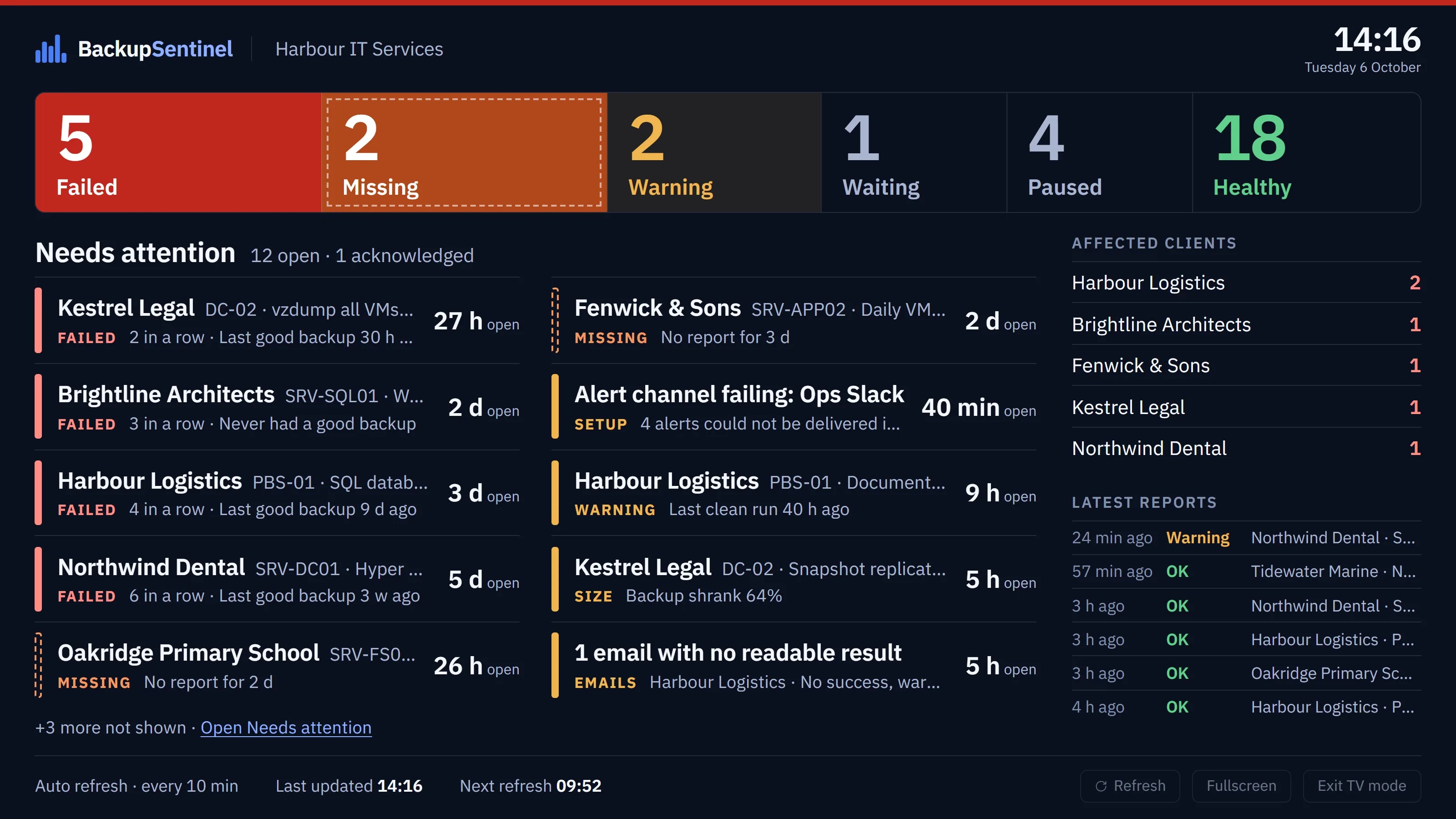
It shows the status counts, the Needs attention list in large type, the clients most affected, the latest reports and a clock. The list holds open and acknowledged items in the queue's own order, each with how long it has been open; acknowledged items are marked, and snoozed or resolved ones are left out. If the counts show problems but every alert has been snoozed, the screen does not claim everything is healthy.
It refreshes in place every ten minutes. A failed refresh keeps the last data on screen and retries after 30 seconds, 1 minute, 2 minutes and then every 5 minutes. From 15 minutes without fresh data, the last update time in the footer turns amber with the data's age; from 25 minutes, DATA MAY BE STALE appears with the time of the last update; and from an hour the screen dims. After three failed refreshes it reloads the page once, at most every 30 minutes. If the session has signed out, the screen says so, keeps the last data, and offers a link to sign in.
TV mode works for any role, so a Viewer account is the right one for the screen. Team seats are unlimited on every plan, so a dedicated account costs nothing. It needs a normal signed-in session, including two-factor authentication if the workspace requires it. There is no public or kiosk link.
More detail is on the TV mode feature page, and roles and 2FA are covered in Team and security.