The backups, on the screen across the room.
TV mode turns the Overview into a wallboard for the office screen: the status counts and Needs attention in type you can read from your desk, refreshed every 10 minutes, and plain about it when the data stops being current.
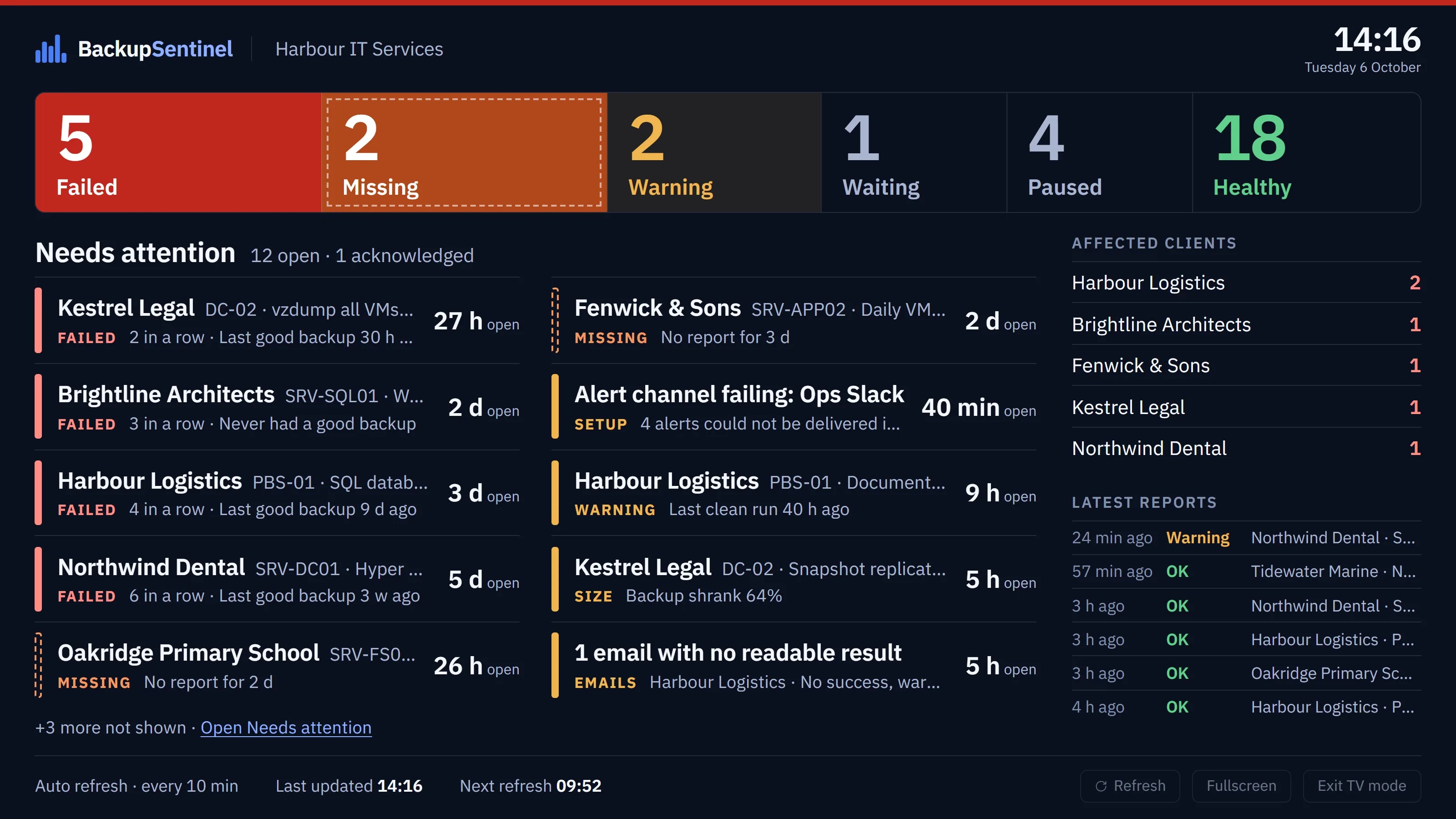
What the screen shows.
The same answer as the Overview, sized for a wall: how many backups are Failed, Missing, Warning, Waiting and Healthy, and what needs someone now. The type scales with the screen, and the Needs attention list is set as large as the open items allow.
When nothing is open it says “All backups are healthy”. When backups are failing but their alerts are snoozed or closed, it says “No open items” and how many backups are affected, never that all is well.
- Status counts
- One large number per state. Paused appears only while a client is paused.
- Needs attention
- Client, backup and device, what went wrong (“4 in a row”, how long since it last worked) and how long it has been open. Acknowledged items say so.
- Affected clients
- Each client with open problems and how many it has.
- Latest reports
- The newest reports as they arrive: OK, Warning or Failed, with client and backup.
- Clock
- The time, the workspace name, when the screen last updated and when it updates next.
- More than fits
- Items that do not fit are counted under the list, with a link to Needs attention.
How you know the screen is up to date.
A wallboard nobody touches has to say when it is wrong. TV mode refreshes in place, keeps the last good data when a refresh fails, and marks that data as it ages.
- Every 10 minutes
- The screen refreshes in place, without reloading the page. The foot shows Auto refresh · every 10 min, the time of the last update and a countdown to the next. Refresh updates it at once.
- A hidden tab
- Waits, and refreshes as soon as it is shown again.
- A failed refresh
- The last good data stays on screen with “Refresh failed”. It tries again after 30 seconds, 1 minute and 2 minutes, then every 5 minutes, so a busy server is not hammered.
- After 15 minutes
- A refresh is overdue: the time of the last update turns amber and says how old the data is.
- After 25 minutes
- A banner reads DATA MAY BE STALE, with the time of the last update.
- After an hour
- The screen dims, so an old picture cannot pass for a current one.
- Left open for days
- After three failed refreshes in a row, with the network up and the session still signed in, the page reloads itself once. It does this at most every 30 minutes.
- Signed out
- The screen keeps the last data and says it is signed out, with a link to sign in again.
How to put it on a screen.
- On the computer that drives the screen, sign in to your workspace in a browser.
- On the Overview, click TV mode. The browser goes full screen as the wallboard opens; if it refuses, use the Fullscreen button at the foot of the screen.
- Leave it. It refreshes itself every 10 minutes and keeps going for as long as the session stays signed in.
- Exit TV mode takes you back to the Overview.
It is laid out for 16:9 screens and scales with them. On a narrow or portrait screen the list flows and scrolls instead.
Which account the screen should sign in with.
Any role can open TV mode, so the screen can use its own account. A Viewer is a sensible choice: it sees every client, backup and alert, and cannot acknowledge, resolve or change a setting, which suits a browser that anyone in the office can walk up to.
Seats are unlimited on every plan, so a separate account for the screen costs nothing.
- Session
- A normal signed-in session, like any other dashboard page.
- Two-factor
- If your workspace requires it, the screen’s account signs in with an authenticator code, like everyone else.
- Clicks
- Rows are links into the app. On a Viewer account they open read-only pages.
What it does not do.
- It needs a signed-in browser session. There is no public link or kiosk URL that shows the wallboard without signing in.
- It is made for 16:9 screens. On a portrait or narrow screen it falls back to a scrolling list.
- It shows what is open now. For the last 30 days, use the Backup Matrix.
Put the backups on the office wall.
Start a trial, point one backup's report at its client address, and open TV mode from the Overview.