Documentation menu
Synology DSM
Send Synology DSM backup reports to BackupSentinel, step by step.
Last updated
DSM sends its notifications by email. A notification rule that contains only the Hyper Backup results keeps everything else the NAS reports (disk health, updates, logins) out of BackupSentinel.
Written for DSM 7.2 or later, which has the Rules tab.
Create a notification rule
In DSM, open Control Panel → Notification → Rules and click Add. Name the rule Hyper Backup.
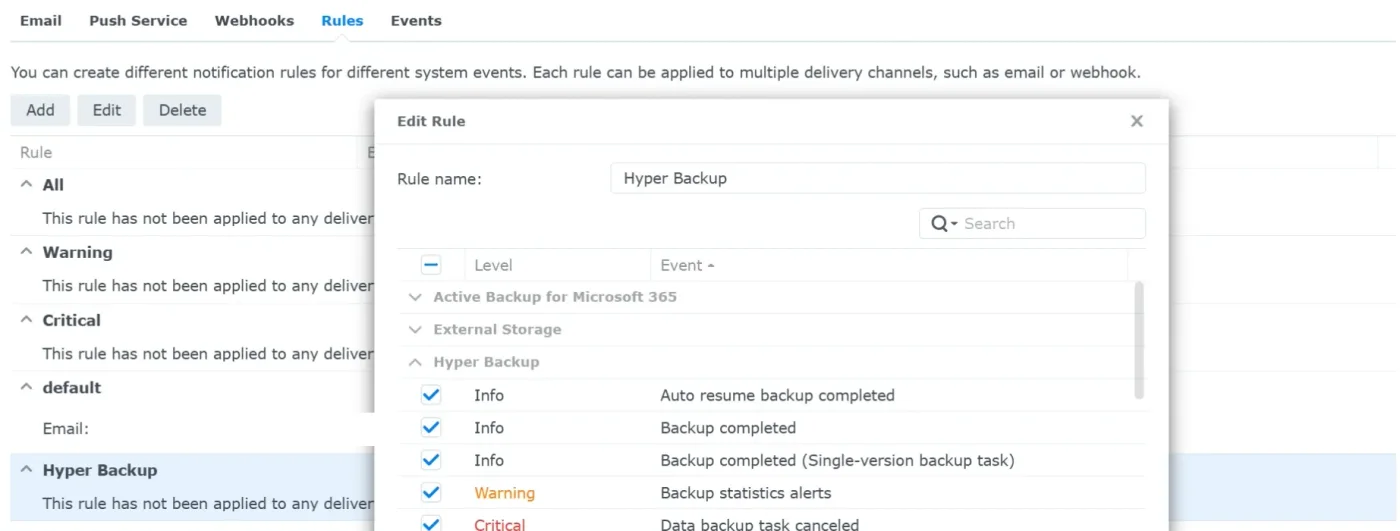
Control Panel → Notification → Rules. A rule lists the events it sends. Tick only the Hyper Backup results
Clear the checkbox in the header so nothing is selected, open the Hyper Backup group, and tick the events that say how a backup ended:
- Backup completed, Backup completed (Single-version backup task), Auto resume backup completed
- Data backup task failed, Data backup task partially completed
- Data backup task canceled, Data backup task suspended
- Entire system backup completed, and its auto-resumed variant, if you use entire system backup
- Backup statistics alerts is optional: it warns about an unusual change in backup size and is not the result of a run
- Integrity check events are optional: a failed integrity check marks the task it checked as Failed, because its backup data may be damaged. A completed check never changes the status.
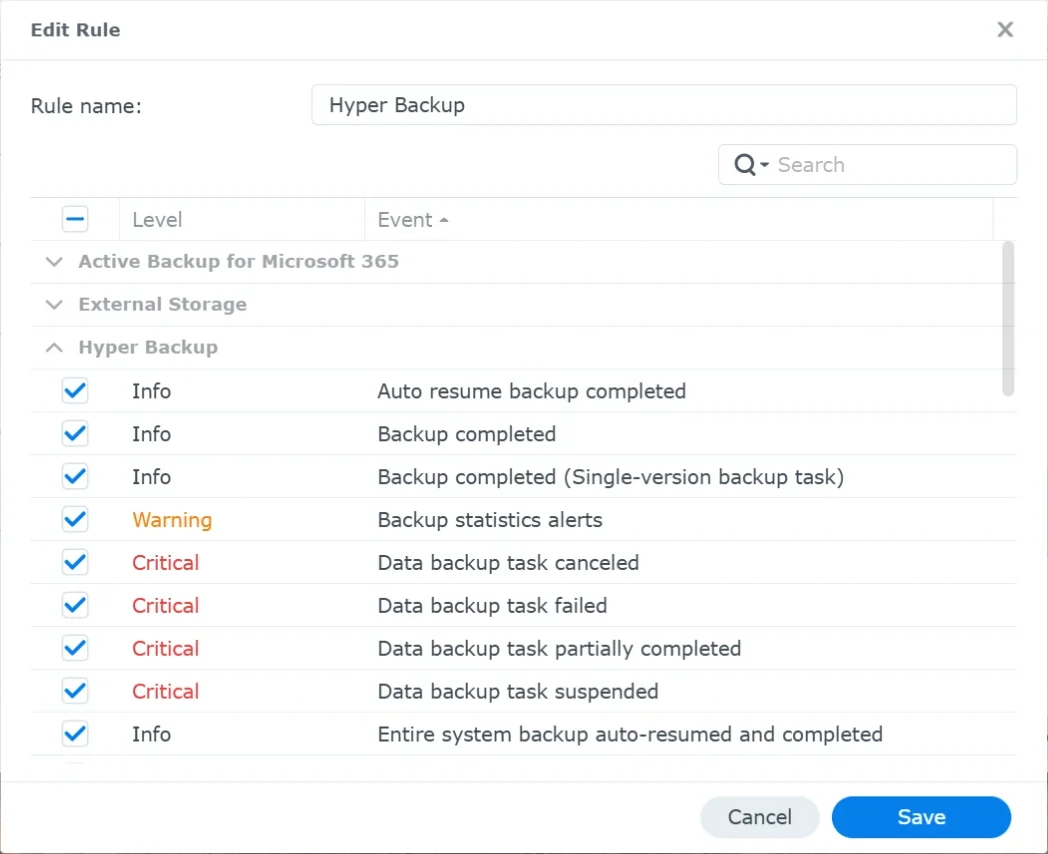
Only the Hyper Backup group is ticked. The other groups stay closed and empty. Leave the rest unticked
Every email that reaches the address counts as a report for the backup, so leave out the events that are not a backup result:
- LUN and restoration events, unless LUN backup is the job you monitor
- End-of-support and other announcements

Further down the same list: LUN and restoration events are left unticked. Send the rule to the client address
Save the rule, then open the Email tab. Set up the sender if DSM does not send email yet, add the client address as a recipient, and give that recipient the Hyper Backup rule. Your own address keeps its own rule, so you still receive everything else.
- No subject prefix is needed: the built-in rule recognises DSM's own Hyper Backup subjects, such as Network backup - BKP to HDD2 successful on NAS01.
Apply and run a backup
Click Apply. Then run the Hyper Backup task once (Hyper Backup → Back up now) so a real result is sent.
- How reports find their backup
- The built-in rule reads the Hyper Backup task name from each email, so several tasks on one NAS can all report to the client address. Give each backup in BackupSentinel the exact name of its Hyper Backup task; Start monitoring from a task's first email suggests that name. An email for a task that has no backup yet waits in the Inbox instead of updating another task's backup.
- Check it works
- Run the job once, or wait for the next scheduled run. Within a minute the report appears under the backup, or in the Inbox when it could not be matched. A product's own "send test email" is not a backup result: expect it in the Inbox, where you can ignore it.
- Good to know
- A partially completed backup shows as Warning, a failed one as Failed. Canceled and suspended notices may carry no result the rule can read; those wait in the Inbox instead of changing the status.
- DSM 7.1 and earlier have no Rules tab: use Control Panel → Notification → Advanced and tick Email for the same Hyper Backup events.