Documentation menu
Connect Claude (MCP)
Connect the Claude app, Claude Code or Cursor to your workspace with an API key, step by step.
Last updated
BackupSentinel runs an MCP server, so Claude and other assistants that speak the Model Context Protocol can answer questions from your workspace: what needs attention, how a client's backups are doing, what is waiting in the Inbox. With the right key, they can also acknowledge, snooze and resolve alerts.
You need two things: an API key from BackupSentinel, and an MCP client. Setup takes about two minutes.
https://app.backupsentinel.io/api/mcp
1. Create an API key
Owners and admins create keys in BackupSentinel:
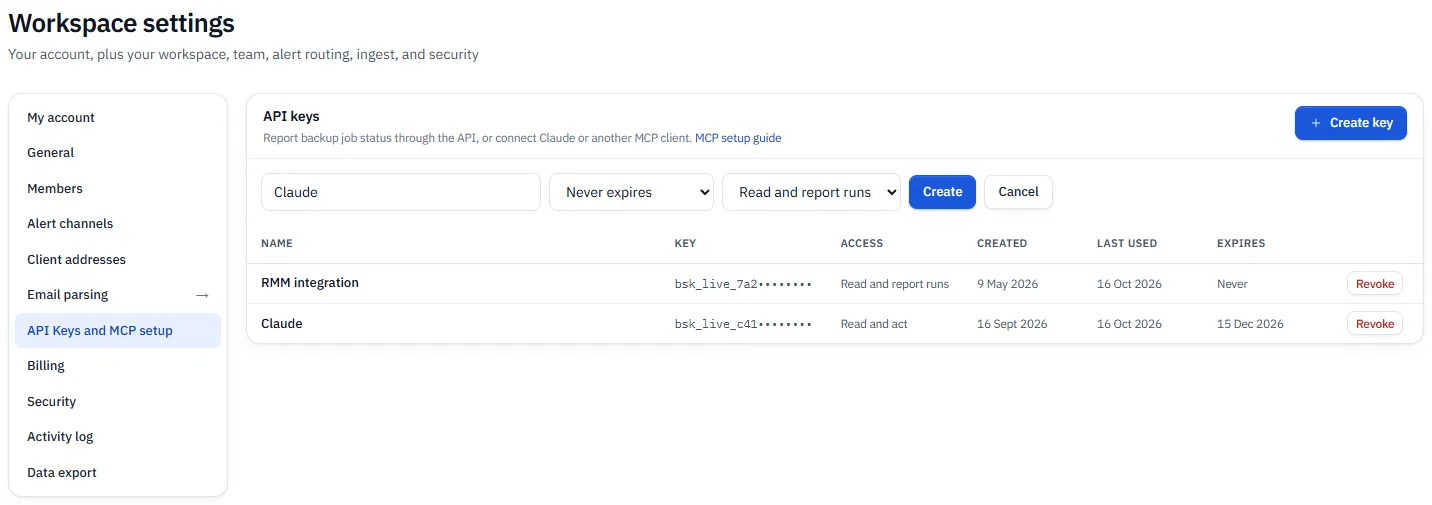
- Open Settings → API Keys and MCP setup and choose Create key.
- Give it a name you will recognise later, such as
Claude, choose when it expires (or Never expires) and choose its access:- Read and report runs: Claude can look, but not change anything. Like every key, it can still record backup runs through the Report API.
- Read and act: Claude can also acknowledge, snooze and resolve alerts, record a run, and pause or resume a backup.
- Choose Create.
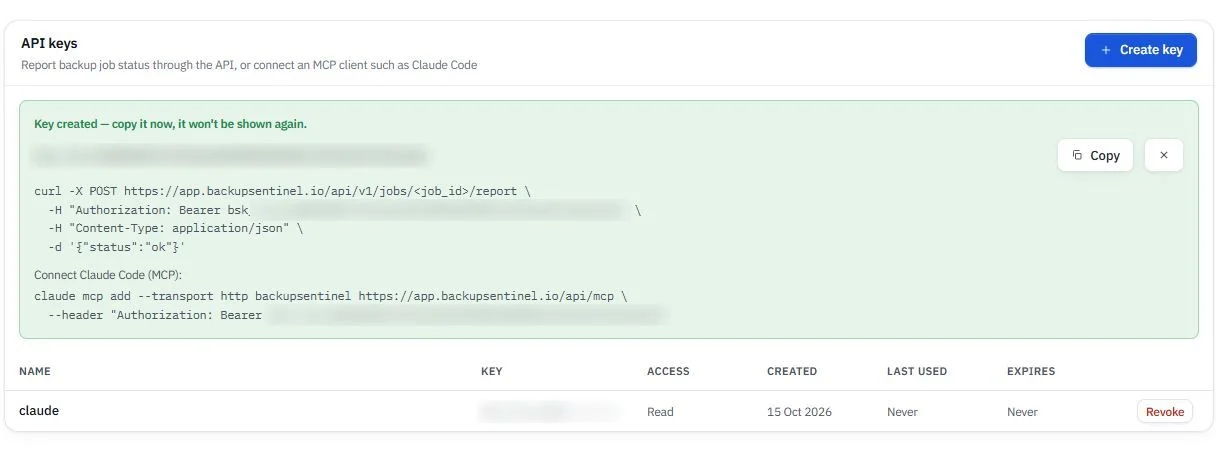
- Copy the key. It starts with
bsk_live_and is shown only once.
2. Connect Claude
Claude app
These steps use the Claude desktop app. claude.ai has the same Settings → Connectors page.
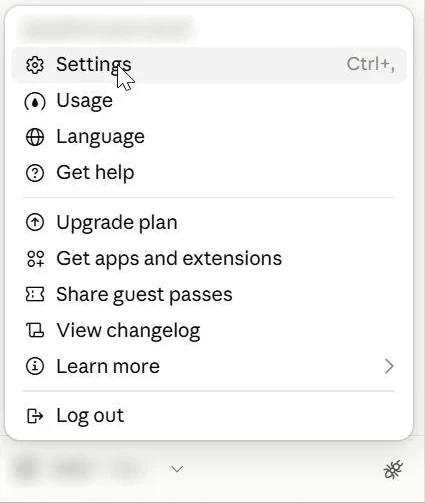
Open Settings. Click your name in the bottom-left corner, then Settings.
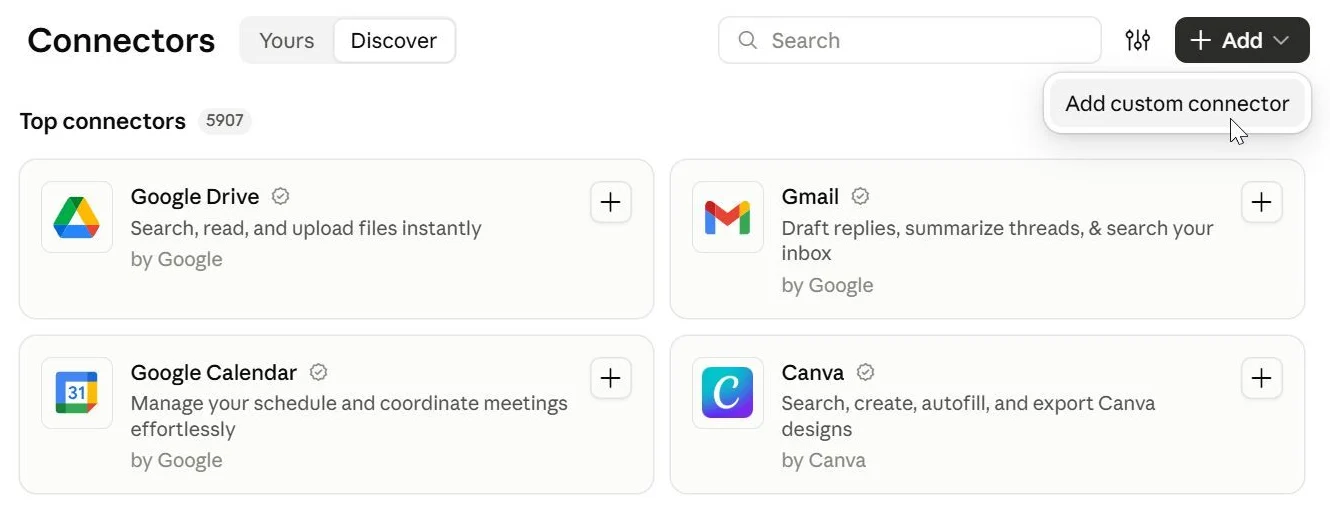
Add a custom connector. Choose Connectors in the sidebar, then Add → Add custom connector.
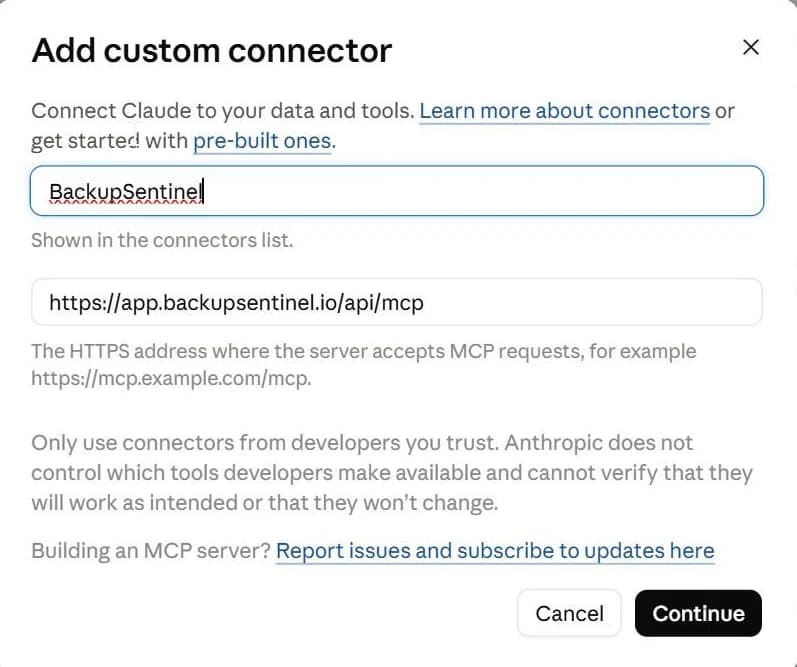
Enter the name and address. Name it BackupSentinel and paste the server address, then choose Continue.
https://app.backupsentinel.io/api/mcp
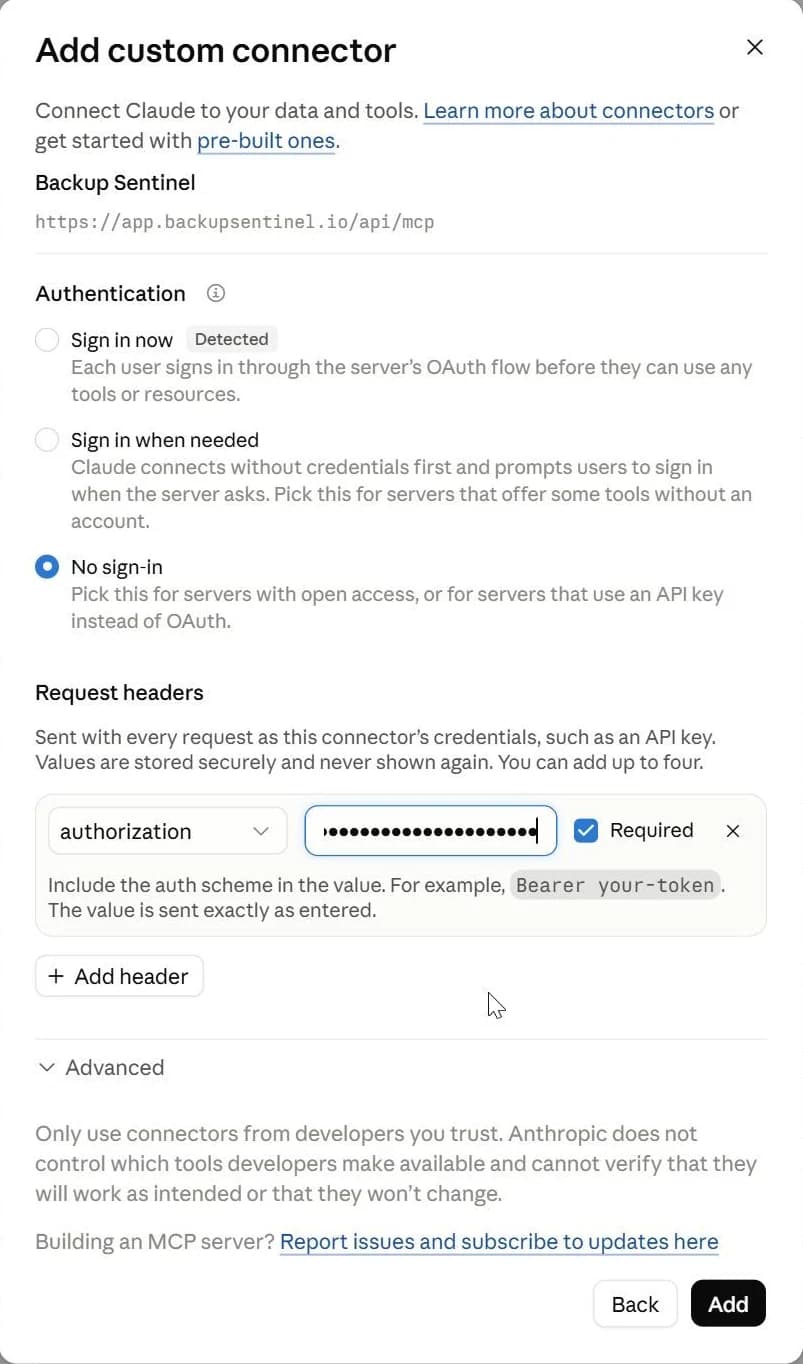
Choose No sign-in and add the key as a header. This is the step that matters:
-
Under Authentication, choose No sign-in. Claude marks Sign in now as "Detected", but BackupSentinel signs in with an API key, not OAuth, so ignore it.
-
Under Request headers, choose Add header.
-
Set the name to
authorizationand the value toBearerfollowed by your key, with one space in between:Bearer bsk_live_...When you create the key, BackupSentinel shows this value ready to copy, under the key.
-
Leave Required ticked and choose Add.
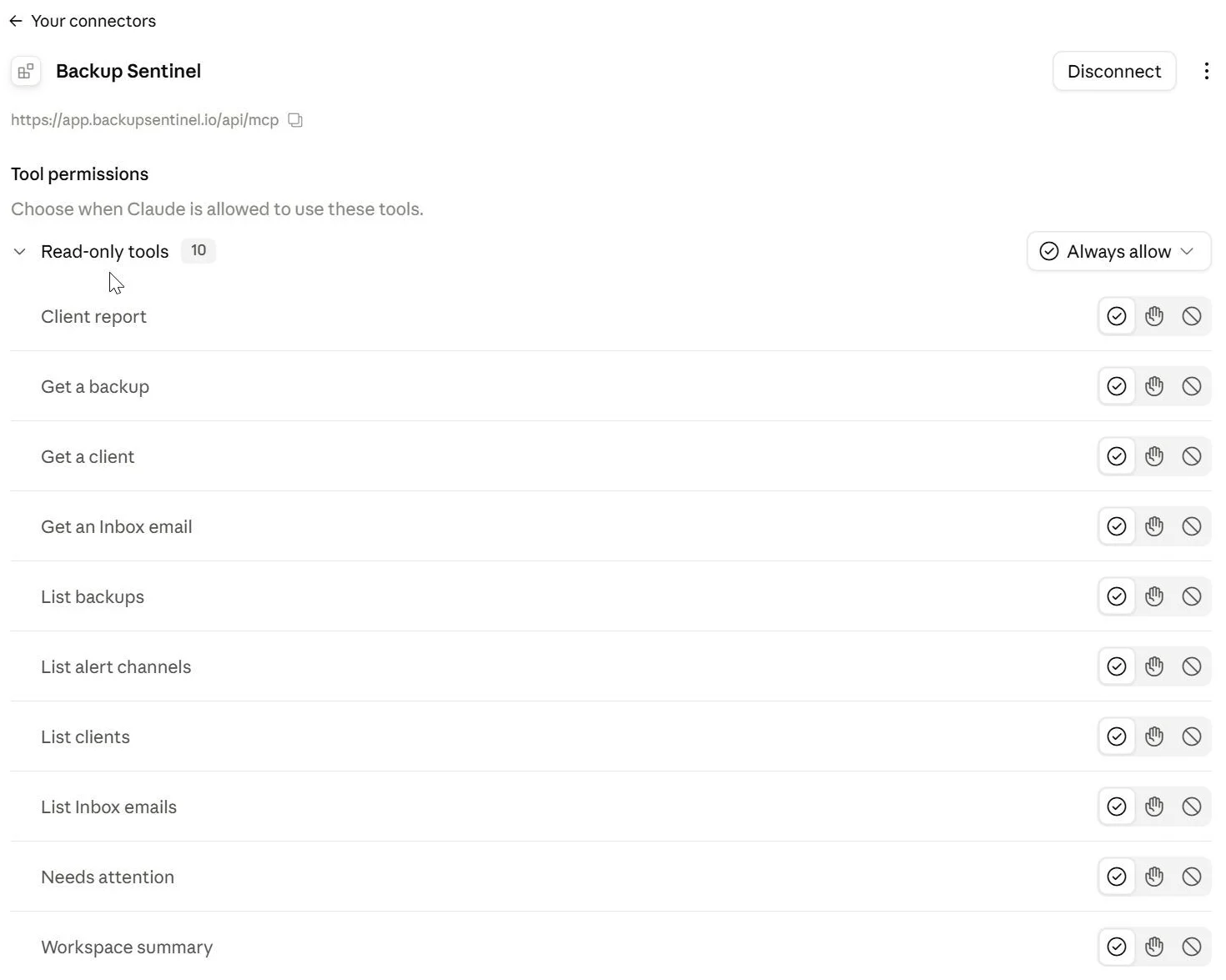
Check the tools. The connector opens and lists its tools. A Read and report runs key shows 10 read-only tools. A Read and act key adds the tools that change things. We recommend setting those to ask before each use (the hand icon), so you approve every acknowledge, snooze, resolve, report, pause or resume. Report emails come from outside your workspace, and the assistant reads their text; keeping approval on means a crafted email can never make a change on its own.
Ask a question. Start a new chat and ask:
What needs attention in BackupSentinel?
Claude calls the BackupSentinel tools ("Used 3 tools") and answers from your workspace: the open problems worst first, with links to the job and the Inbox.
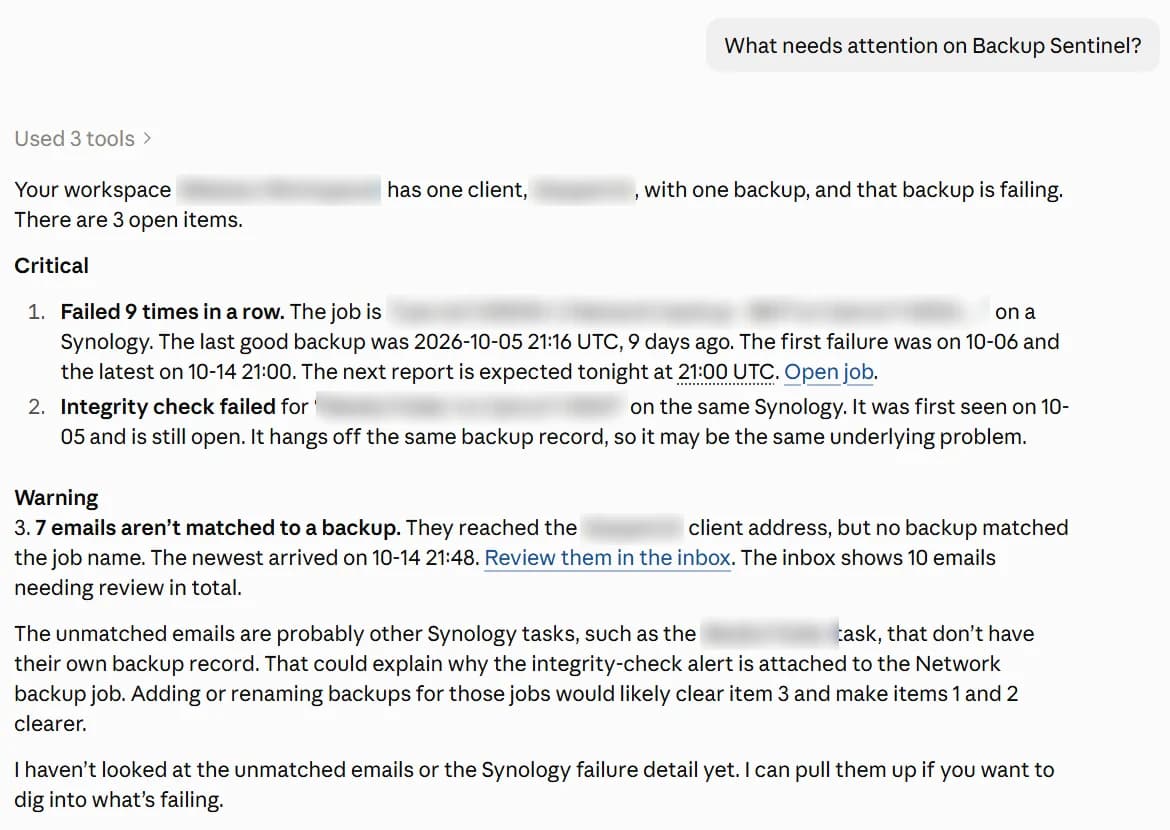
If Claude answers without using BackupSentinel, check that the connector is turned on for that chat. In BackupSentinel, the key's Last used column changes from "Never" within a few minutes.
Claude Code
Run this once, with your key in place of $BACKUPSENTINEL_KEY:
claude mcp add --transport http backupsentinel \
  https://app.backupsentinel.io/api/mcp \
  --header "Authorization: Bearer $BACKUPSENTINEL_KEY"
The same command, with your key filled in, is shown in Settings → API Keys and MCP setup when you create the key. Check the connection with:
claude mcp list
Inside a Claude Code session, /mcp shows the server and its tools.
Cursor and other clients
Clients configured with JSON take the address and the header:
{
  "mcpServers": {
    "backupsentinel": {
      "type": "http",
      "url": "https://app.backupsentinel.io/api/mcp",
      "headers": { "Authorization": "Bearer bsk_live_..." }
    }
  }
}
Any client that can send a request header to a remote MCP server works the same way.
3. What to ask
Ask in your own words. A few starting points:
- "What needs attention this morning, worst first?"
- "Why is the Northwind Dental file server backup failing?"
- "Which Inbox emails were not matched to a backup?"
- "How did Harbour Logistics' backups do last month?"
- "Acknowledge the failed Kestrel Legal backup and snooze it until tomorrow." (Read and act keys only)
The server also offers a morning_check prompt: what needs a technician, grouped by client, worst first, plus what is already acknowledged. In clients that list prompts, pick it from the menu.
What a key can do
| Access | Tools |
|---|---|
| Read and report runs | workspace_summary, needs_attention, list_clients, get_client, list_backups, get_backup, list_inbox, get_inbox_email, client_report, list_channels |
| Read and act | Everything above, plus acknowledge_alert, snooze_alert, resolve_alert, report_run, pause_backup and resume_backup |
Keys created before the MCP server have Read and report runs access. To change a key's access, create a new key and replace the old one in your client.
Every key, whichever access it has, can record a run for any backup in its workspace through the Report API — that is what the keys were made for. "Read" is about the MCP tools: a Read and report runs key has no tool that changes anything.
- One workspace. A key only ever sees and changes its own workspace. Every request is checked twice: the query is filtered to the key's workspace, and a guard refuses it if that filter is missing.
- Report emails are untrusted. The text of a report email is written by whoever sends it. Answers that quote it are marked as data, and the change tools act only when you ask, never because an email's text says to. Keep the act tools set to ask before each use.
- What is never returned: device logins, webhook URLs, API keys, billing and team members. Alert channel addresses are masked, and report emails are returned as their first 2,000 characters of text.
- Same rules as the dashboard. Statuses are the six the dashboard shows. Acknowledge, snooze and resolve do what they do in Needs attention, and resolving sends recovery notices. Every change is in the activity log as
API key "<name>" (MCP). - Same limits. 60 requests a minute per key, shared with the Report API, and one message per request: JSON-RPC batches are refused. A suspended workspace gets an error.
- Docs included. The server offers these docs pages (job statuses, Needs attention, parsing rules, alerts, reports, the API and this page) as resources, so the assistant can look up how BackupSentinel works.
Troubleshooting
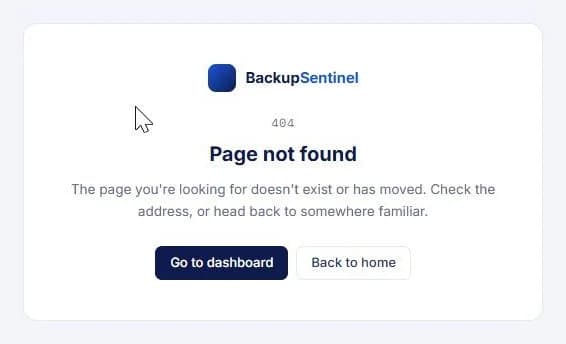
A "Page not found" page opens after Add
The connector was added with Sign in now. BackupSentinel has no sign-in page for connectors, so Claude lands on a 404. Remove the connector and add it again with No sign-in and the authorization header, as in step 2.
Claude shows an error from BackupSentinel
| Message | What to do |
|---|---|
| "Missing or malformed Authorization header" | The header is missing or its value is not Bearer, one space, then the full key. Look for a missing Bearer, two spaces, or a space or line break after the key. |
| "Invalid API key" | The key was revoked or mistyped. Create a new one and replace it in the connector. |
| "API key has expired" | The key reached the expiry date chosen when it was created. Create a new one. |
| "Monitoring is paused for this workspace (billing)" | The workspace is suspended. See Billing and plans. |
| "Rate limit exceeded" | More than 60 requests in a minute with this key, counting Report API calls. Wait a minute. |
| "JSON-RPC batches are not supported" | The client sent several messages in one request. Claude never does this; for your own client, send one message per request. |
Claude can read but not change anything
The key has Read and report runs access. Create a key with Read and act and replace the old one in your client.
Limits
- The MCP server cannot create or delete clients, backups, channels or keys. Do that in the dashboard.
- It signs in with an API key only. There is no OAuth sign-in, so choose No sign-in when adding the connector.